
This is my experiment with “vibe coding.” I tried to create something halfway between Wireshark and Splunk for rapid traffic analysis.
Beyond that, the idea was to be able to view traffic on any office PC right on the spot—in a portable way, without installing any software. It was simply an idea born of curiosity.
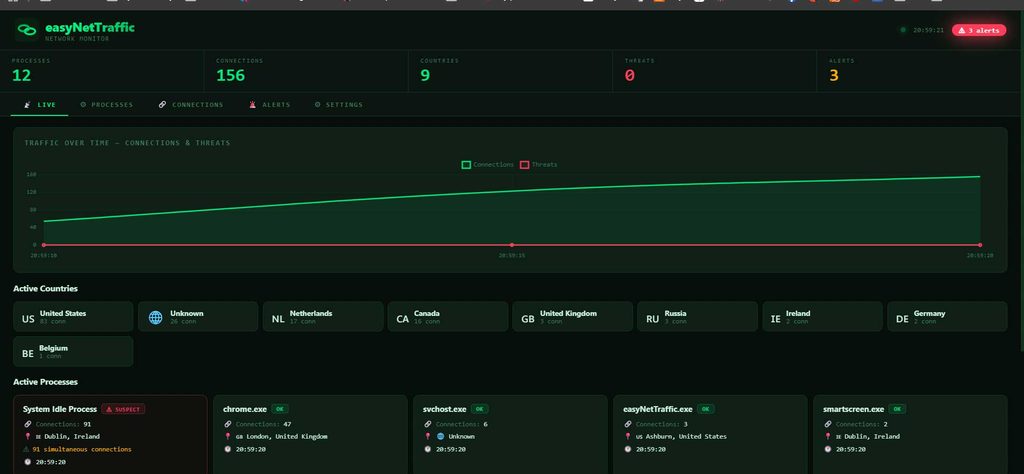
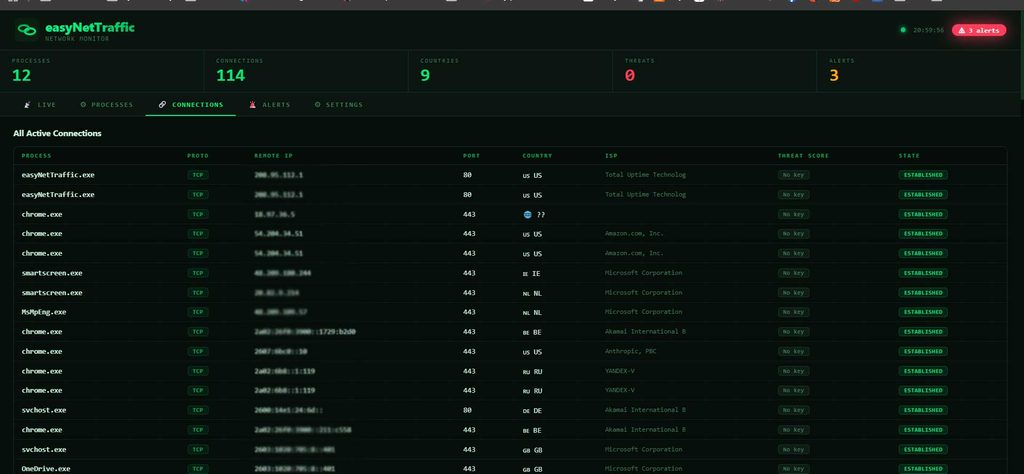
Here is a short list of this software’s features.
Real-time
live monitoring
Every active connection on your machine, updated every 5 seconds — no manual refresh.
- Process cards — each app showing connection count, country flag, and status badge
- Traffic chart — visual timeline of connections and threats over the last 5 minutes
- Country map — instant overview of which countries your PC is talking to
- Status badges — OK, NEW, SUSPECT, THREAT — colour-coded at a glance
GeoIP
flags & ISP
Every remote IP is resolved to a country flag, city, and internet provider — automatically, no API key needed.
- Uses ip-api.com with automatic fallback to ipapi.co (HTTPS) — works behind corporate firewalls
- Country flags visible in Live cards, Connections table, and Countries strip
- ISP column shows which company owns the server — useful for spotting unexpected cloud providers
Threat
detection
Optional AbuseIPDB integration scores every remote IP 0–100 for known malicious activity. Free account gives 1 000 checks per day.
- Colour-coded score bar: green (safe) → amber (suspicious) → red (confirmed threat)
- Automatic alert fired when a threat IP is detected — logged in Alerts tab
- Threat rows highlighted in red across Live, Connections, and Alerts tabs
- No key required to run — GeoIP and all other features work without AbuseIPDB
Portable.
USB-ready.
One 2.5 MB file. Copy it to a USB drive and use it on any Windows 11 machine — nothing is installed, nothing stays behind.
- No Python, no .NET, no Visual C++ runtime — zero dependencies
- No registry changes, no background services, no startup entries
- Quick-look tool — open it, see what’s happening right now, close it
- CSV report downloads on demand or auto-generates every Friday at 12:00